
Download the signed .xpi
Go to your license download page, enter your key, and click Download for Firefox. You'll get a .xpi file — this is the signed extension package.
Open the .xpi in Firefox
Double-click the downloaded .xpi file, or drag it into a Firefox window. Firefox will show an install prompt. Click Add to install Tee Sniper permanently.
The Tee Sniper icon appears in your toolbar. No developer mode or about:debugging needed — this is a normal Firefox extension.
Open the panel and arm
Click the Tee Sniper icon in your toolbar. The panel slides out. Paste your license key, pick your play date, set your earliest and latest tee times, and hit the red ARM button.
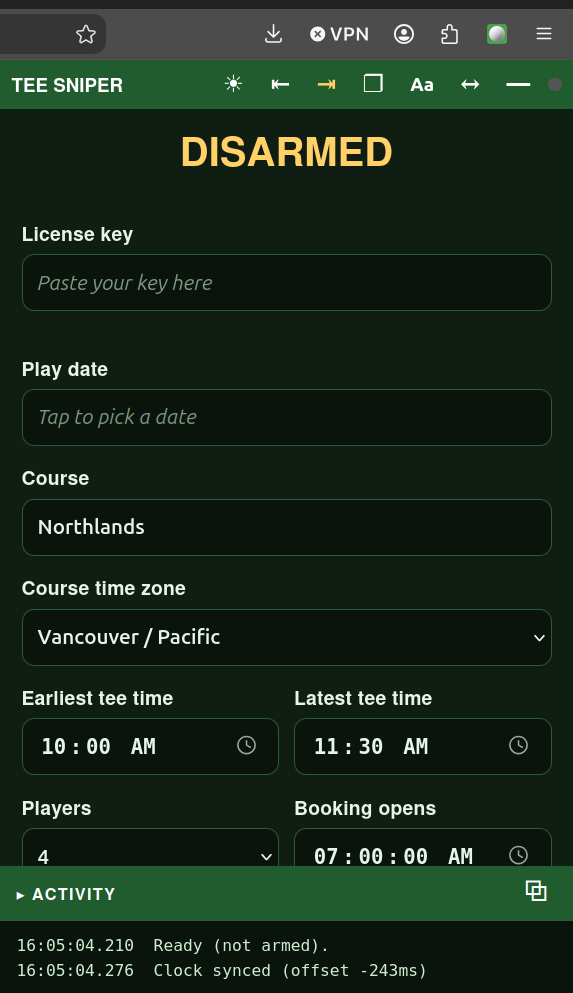
You'll get a "ready" ping. Leave the tab open — Tee Sniper watches for the booking window and books automatically.
Firefox-specific questions
Is this a permanent install?
Yes. The .xpi is signed by Mozilla and installs permanently — no more temporary add-ons or about:debugging. It persists across browser restarts and updates like any other Firefox extension.
Will I lose my settings after a restart?
No. Your license key, play date, time window, and toggle preferences are stored in Firefox's extension storage and persist permanently. Only the extension itself needs to be reloaded after a browser restart.
Does Firefox work as well as Chrome?
The Firefox build uses the same booking logic as Chrome, with adaptations for Firefox's content-script lifecycle and manifest format (Firefox MV3 uses browser_specific_settings.gecko). Live testing confirms Firefox books tee times in ~11 seconds.
I see "Could not start license verification."
The content script may not have fully initialised on the course page. Refresh the course tab (F5 or ⌘R) as a first troubleshooting step and try again. If the issue persists after refreshing, contact support@teesniper.app.
Can I use the same key on Chrome and Firefox?
Check your installation-binding terms. Some licenses allow use on multiple browsers; others may restrict the number or type of installations. Contact support@teesniper.app if unsure.
Do I need to re-download after every Firefox update?
No. Firefox browser updates don't affect your Tee Sniper installation. You only need to re-download when we release a new Tee Sniper version (you'll get an email).
What data does Tee Sniper collect?
License key verification is sent to teesniper.app. Optional compatibility reports (course site, detected layout, language, result, version, time) are sent only with your explicit consent via Firefox's permissions dialog plus per-report Review/Send. No advertising or third-party tracking. See our privacy policy.